#1690 No CUDA detected. Check NVIDIA GPU/Drivers. See Help -> CUDA.

191.6* Posted at: 8 days ago 👁34

No CUDA detected. Check NVIDIA GPU/Drivers. See Help -> CUDA.


=
system:Windows-10-10.0.22631-SP0
version:v3.86
frozen:True
language:en
root_dir:D:/win-pyvideotrans-v3.86

3 Replies

The "No CUDA detected" error indicates that the software cannot access your NVIDIA GPU. Here are the steps to resolve this:

  1. Verify NVIDIA GPU and Drivers:

    • Open Device Manager (press Win+X, then select "Device Manager").
    • Expand "Display adapters". You should see your NVIDIA GPU listed (e.g., "NVIDIA GeForce ..."). If not, your system may not have a compatible NVIDIA GPU.
    • If it is listed, ensure you have the latest drivers installed. Download them from the NVIDIA Driver Download page.
  2. Install CUDA Toolkit (if necessary):

    • The pre-packaged Windows version of pyVideoTrans should include the necessary CUDA libraries. However, if the error persists, you may need to install the CUDA Toolkit manually.
    • Download and install the CUDA 12.x toolkit from the NVIDIA CUDA Toolkit archive.
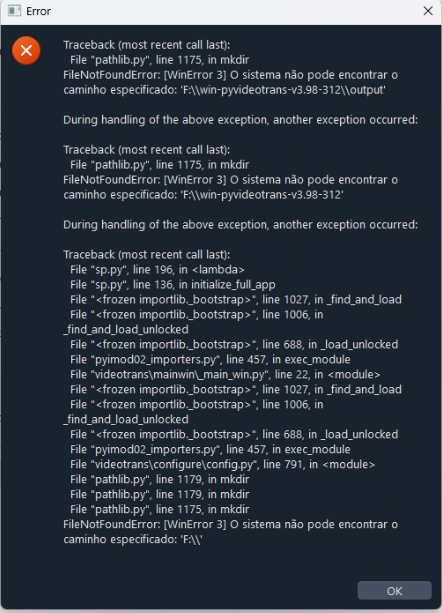
  3. Critical: Check Installation Path:

    • Your software is installed at D:/win-pyvideotrans-v3.86. This is a good path (no Chinese characters or spaces). However, ensure the folder and its contents are not set to "Read-only" and that you have full write permissions.
  4. Restart and Test:

    • After updating drivers or installing CUDA, restart your computer.
    • Launch pyVideoTrans again. The error should be resolved, and you will be able to enable the "CUDA acceleration" option.

If the problem continues after these steps, please provide the complete log file from the D:/win-pyvideotrans-v3.86/logs/ directory.

È possível usar a inteligência artificial do grok pyvideotrans-v3.86?

Sim, é possível usar o modelo Grok AI no pyVideoTrans v3.86 para tradução de legendas.

Para configurar o Grok como seu mecanismo de tradução:

  1. Obtenha uma chave de API:

    • Você precisará de uma chave de API válida do Grok (provavelmente através da plataforma xAI).
  2. Configure no pyVideoTrans:

    • Na interface principal, na linha "Tradução", selecione "OpenAI" no menu suspenso.
    • Clique no botão "Configurações de Tradução" (ícone de engrenagem) ao lado.
    • No campo "Chave API", cole sua chave do Grok.
    • No campo "URL de Base da API", você precisará inserir o endpoint (URL) específico da API do Grok. Consulte a documentação do xAI para obter o URL correto.
    • Defina outros parâmetros conforme necessário (por exemplo, Model Name provavelmente será grok-beta ou similar).
  3. Selecione os idiomas:

    • Certifique-se de selecionar o "Idioma de Pronúncia" correto (o idioma original do áudio) e o "Idioma Alvo" desejado.

Após essa configuração, ao iniciar o processo, o pyVideoTrans enviará as legendas para o modelo Grok para tradução.

Nota: Como o Grok é um modelo de IA avançado, é altamente recomendável que, nas Configurações Avançadas (Ferramentas -> Opções Avançadas), na seção "Tradução", você marque a opção "Enviar todo o texto do subtítulo para tradução". Isso fornece mais contexto ao modelo, resultando em traduções mais coesas e precisas.
Post Your Reply
Open source and free maintenance is not easy. If this project is helpful to you, please consider making a small donation to help the project continue to maintain and update.

Donate: https://ko-fi.com/jianchang512

Trending Questions