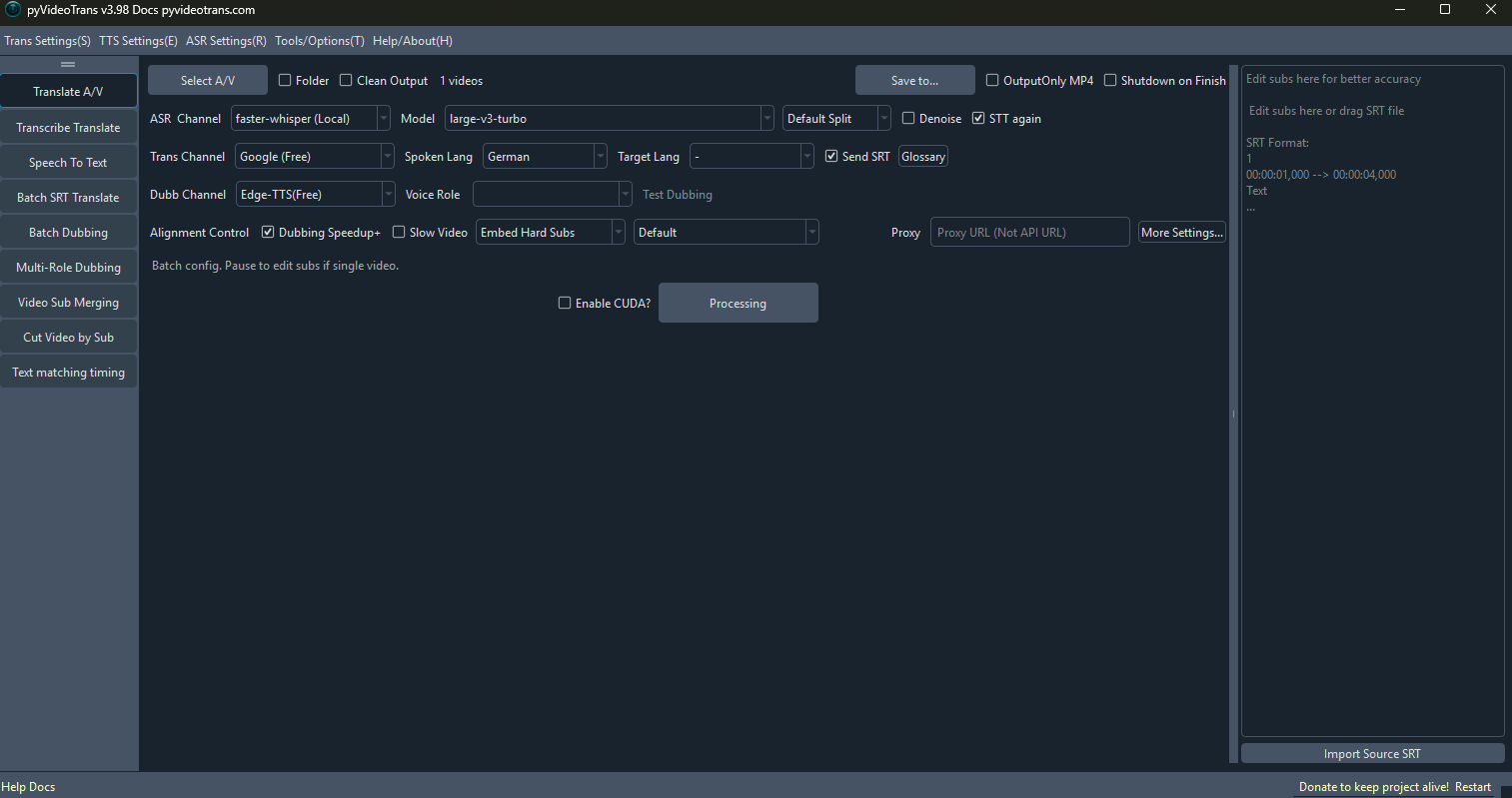
Based on your description, you are not looking at the main video translation interface. You are likely in a different tool or mode within pyVideoTrans.
In pyVideoTrans v3.96, the main interface for video translation has the four-line workflow (ASR, Translation, Dubbing, Merge). If you do not see this, you are probably in one of the standalone tool windows, such as:
- Batch Voice Transcription (STT)
- Batch Text-to-Speech (TTS)
- Batch Subtitle Translation
- Video Hard Subtitle Extraction (GVS)
To add Romanian language for dubbing, you must first return to the main video translation interface.
Procedure:
- Close any current tool window you have open.
- On the main software window, look for the large central area with a "+" button or a file list. This is where you add your video file.
- Drag and drop your video file into this area, or click the "+" button to select it.
- Once the video is added to the list, the four-line workflow interface (Line 1 to Line 4) will appear below it.
- Now, go to Line 3: Dubbing (TTS).
- In Line 3, find the "Target Language" dropdown menu (located next to the "Voice Role" dropdown) and select "Romanian".
- Then, click the "Voice Role" dropdown and choose a voice that supports Romanian (e.g.,
edge-tts:ro-RO-AlinaNeural).
If you are trying to use the standalone "Batch Text-to-Speech" tool:
- Open it from the menu: Tools -> Batch Text-to-Speech.
- In that window, you will find "Target Language" and "Voice Role" dropdowns at the top.
- Set "Target Language" to Romanian and then select a compatible "Voice Role".
请查阅相关文档: